

Roles and permissions you set up yourself
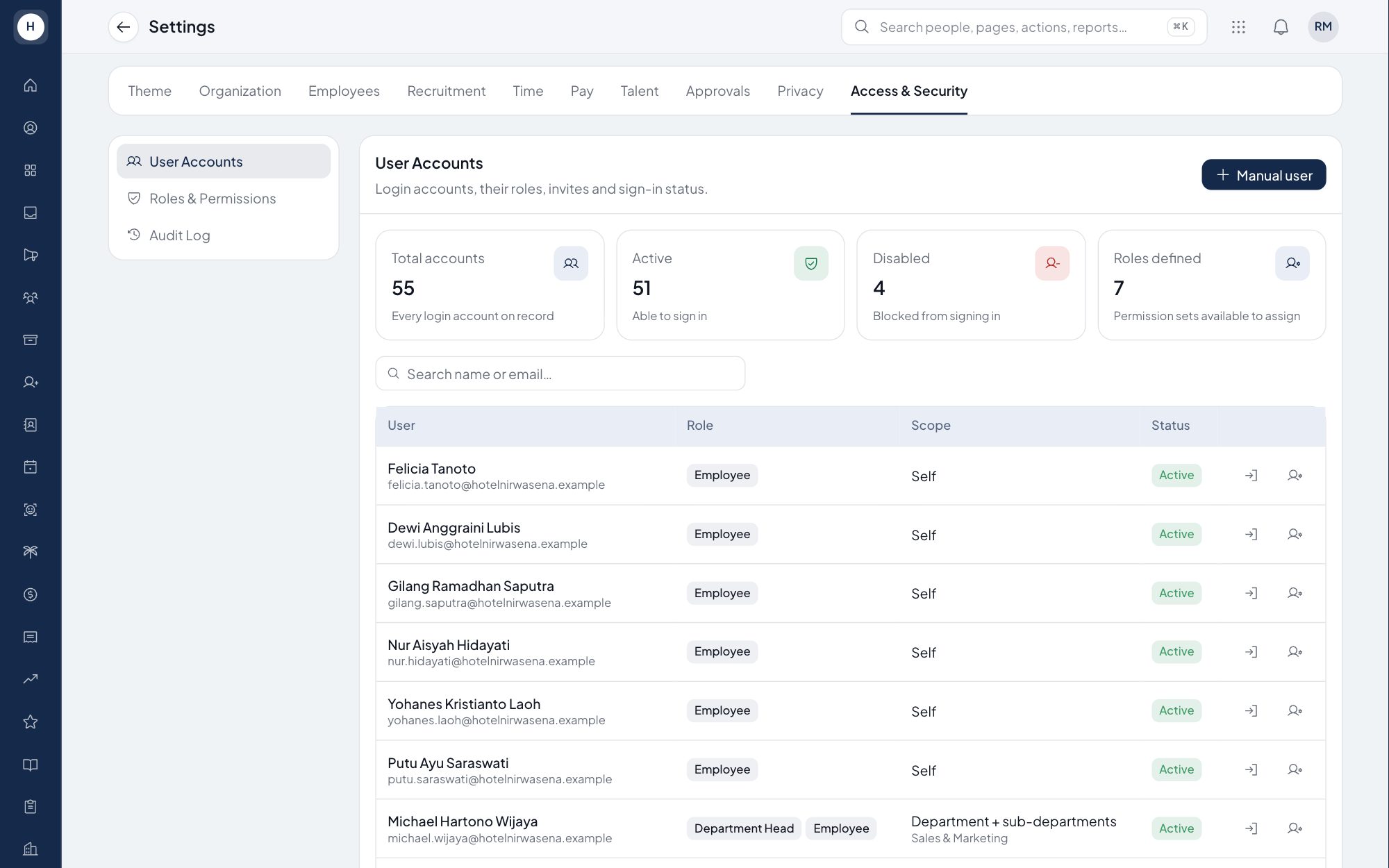
A job title does not decide what someone can see in the system. Each user gets roles made of granular permissions, plus a data scope: their own record, their unit, their unit and its sub-units, or the whole company. A department head sees their team, the payroll team sees salaries, and employees see their own data.
What you can do
Permission per action
View, edit and approve are set separately per module, for example viewing attendance without being able to correct it.
Data scope
Each user is limited to their own data, their unit, their unit and its sub-units, or the whole company.
Editable default roles
HR Superadmin, HR Admin, Payroll Admin, Finance, GM, Dept Head, Dept Admin, Employee and Company Owner come ready. Change them or create new roles.
Masked sensitive data
NIK, NPWP, bank account and salary are shown in full only to users with a specific permission.
How it works
- 1
Pick or create a role
Start from a default role or build a new one by ticking permissions per module.
- 2
Assign it to users
Give a user one or more roles and set their data scope.
- 3
Review in the audit log
Every change to roles, permissions and user scope is recorded with who made it and when.
Frequently asked questions
What is role-based access control in HR software?
A way to decide who can do what in the system through roles that group permissions. In Stavis roles combine with a data scope, so managers see only their own unit.
Can managers see their team's salaries?
Only if their role has the salary permission. Without it, salary and other sensitive fields stay masked.
Can I create my own roles?
Yes. The HR Superadmin can change the permissions in default roles or create new roles that fit the company.
Are access changes logged?
Yes. Creating and changing roles and permissions, and changing each user's roles and scope, all go into the audit log.
See Stavis with your own company
Bring one department, one shift pattern and one month of payroll. We will walk through it with you.
